 Bobbin
Option 1: Google Slides' built-in recording
Slides has its own recorder in Chrome and Edge. Google's help page (checked 22 October 2026) says: click Rec → Record new video, then the red button. There is a 30-minute limit per recording, you need edit access to the deck, recordings are saved to a "Slides recordings" folder in your Drive, and the feature "may only be available on certain work or school accounts". In August 2026 Google also started rolling out a new Record option powered by Google Vids that produces a shareable link, available to personal accounts too.
Use it if you want a Drive link, your deck is in Slides, and 30 minutes is enough.
Sources: Docs Editors Help: Use slides recording · Workspace Updates, 20 Aug 2026.
Option 2: a screen recorder with a webcam bubble (Bobbin)
Use it if you want an MP4 file (for an LMS, YouTube or a client), need longer than 30 minutes, present from something other than Slides (PowerPoint for the web, Canva, a PDF, Keynote), or don't have edit access to the deck.
- Open the deck in Chrome.
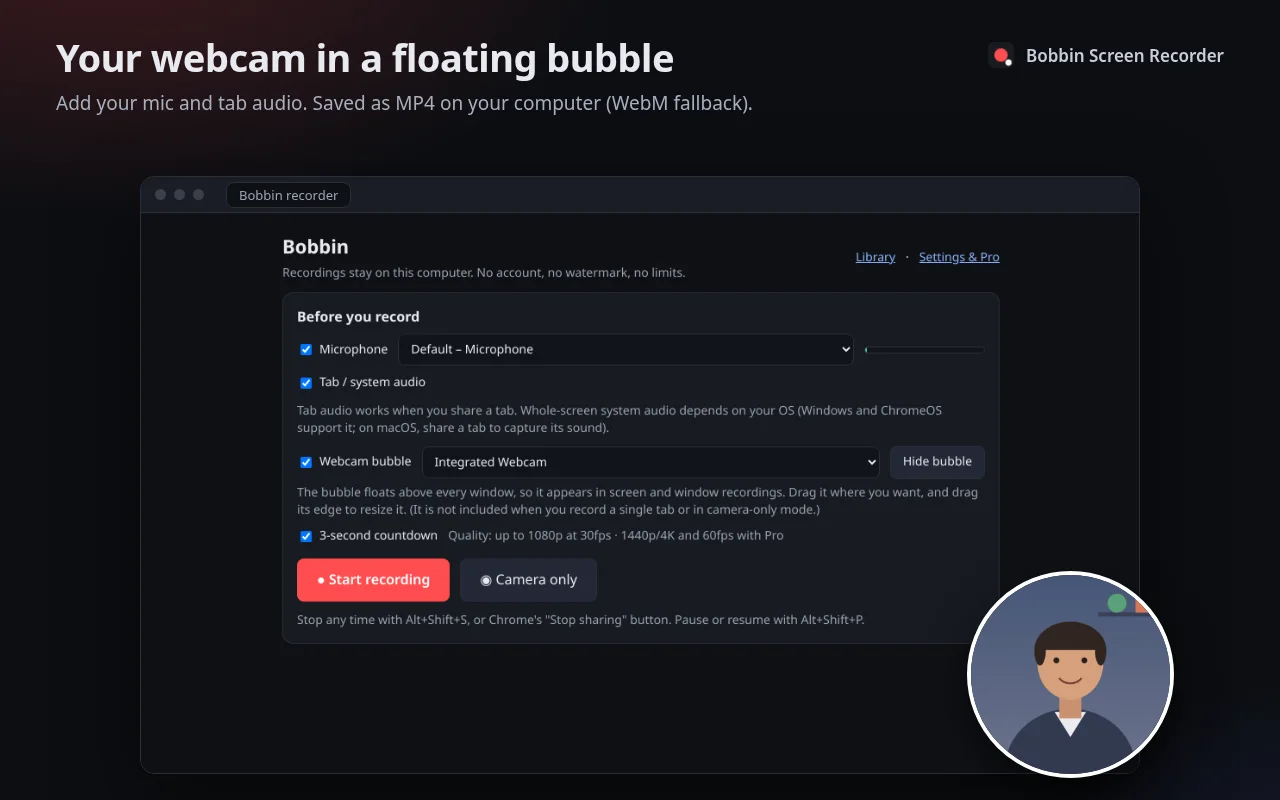
- Click the Bobbin icon → Record screen, window or tab. Tick Microphone and Webcam bubble.
- Drag the bubble to the bottom-right corner and resize it so it doesn't cover slide content. Leave space in that corner when designing your slides.
- Press Start recording and choose Entire screen in Chrome's picker. That's what captures the bubble on top of your slides.
- During the 3-second countdown, click the Slides tab and press Slideshow so the deck fills the screen. Present with the arrow keys. (Trim the first second or two later if you like.)
- Pause with Alt+Shift+P between sections if you need a breath (paused time isn't recorded). Stop with Alt+Shift+S and press Download.
Two screens? Run the slideshow on one and keep speaker notes on the other. Record only the screen with the slides; the bubble needs to sit on that screen.
Presenting tips for recorded talks
- Look at the camera, not the slide, when you make your key points.
- Put the camera at eye level: a stack of books under the laptop works.
- Light your face from the front (a window in front of you, not behind).
- Use fewer words per slide than you would live; viewers can pause.
- Record one section per take if the talk is long, then join the files in any editor.
Which to choose
| Slides recording | Bobbin | |
|---|---|---|
| Output | Video in your Google Drive / share link | MP4 file on your computer (WebM on older browsers) |
| Length | 30 minutes per recording (legacy Slides recording) | No limit |
| Works with | Google Slides decks you can edit | Anything on your screen: Slides, PowerPoint, Canva, PDFs |
| Webcam | Yes, with camera blur | Floating bubble (no blur) |
| Account | Google account | None |