 Bobbin
The short version
- Script it in five parts: problem, promise, walkthrough, result, next step. Aim for 2 to 5 minutes.
- Use a clean Chrome profile, demo data and a window at a fixed size.
- Record the window with your webcam bubble, at 1080p. Pause between sections rather than stopping.
- Share the MP4 directly, or upload it to your site, YouTube or a video host for a link.
A 5-part demo script
| Part | Length | What you say and show |
|---|---|---|
| 1. Problem | 15 to 20 s | The pain in the viewer's words. Show the "before" state if you can. |
| 2. Promise | 10 s | One sentence: what they'll see you do by the end. |
| 3. Walkthrough | 1 to 3 min | The shortest path to the result. Three steps beat ten. Skip settings screens. |
| 4. Result | 20 s | The finished outcome on screen. Pause on it for a second. |
| 5. Next step | 10 s | One call to action: book a call, start a trial, reply to this email. |
Write the walkthrough as a list of clicks, not paragraphs. Rehearse once with the timer running.
Set up Chrome before you record
- Use a separate Chrome profile for demos: no personal bookmarks, extensions or autofill suggestions.
- Use demo data, never a real customer's account. Check that no names, emails or invoices appear.
- Turn on Do Not Disturb in your operating system so notifications don't pop up.
- Size the window to 1920×1080 or 1280×720 so text is readable, and zoom the page to 110 to 125% if the UI is small.
- Close other tabs if you'll record the whole screen.
Record the demo with Bobbin
- Click the Bobbin icon and choose Record screen, window or tab. Pick your microphone and camera.
- Share the window with your product. The webcam bubble appears in window and screen recordings (a single-tab recording leaves it out).
- Use the 3-second countdown to take a breath. Read your first line, then follow your click list.
- Between sections, pause with Alt+Shift+P, reset, and resume. Bad take? Discard it and start again.
- Stop with Alt+Shift+S and download the MP4 from the Library.
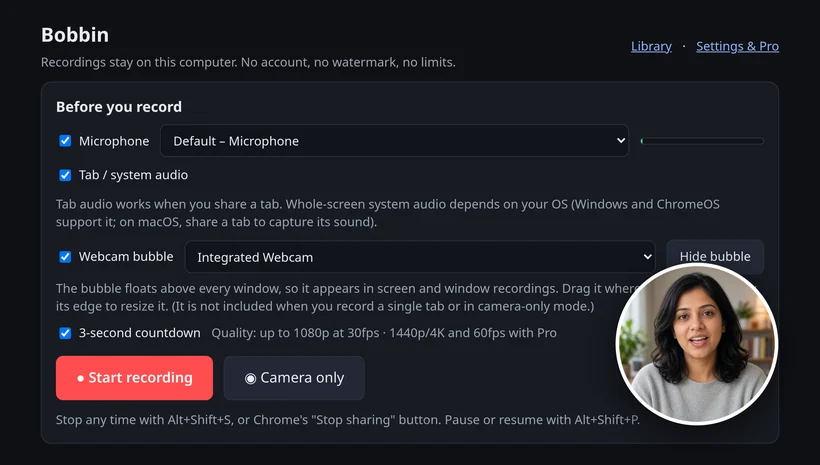
Free records at up to 1080p at 30fps, which suits almost every demo. Bobbin Pro adds 1440p and 4K and 60fps where your screen and computer support it, plus webcam bubble size, shape, border and mirror options and custom file names.
Getting the demo to people
- Sales emails: Gmail attachments are limited to 25 MB, and Gmail turns bigger files into a Google Drive link (Gmail Help: attachments). Short demos often fit; otherwise share a Drive or Dropbox link.
- Slack: Slack allows files up to 1 GB (Slack Help: Add files to Slack).
- Your website or docs: upload to YouTube, Vimeo or your own hosting and embed it.
Bobbin itself doesn't host videos, create share links or track who watched. If you need viewer analytics for sales follow-up, a hosted tool like Loom or Vidyard does that; see Vidyard alternative for the trade-offs.
Common demo mistakes
- Starting with the login screen. Start already signed in, on the page where the value begins.
- Showing every feature. One workflow per video. Make a second video for the next workflow.
- Moving the mouse constantly. Move, click, then keep still while you explain.
- No audio check. Record 10 seconds and play it back first. See Fix no audio if it's silent.