 Bobbin
The short version
- Zoom on a Chromebook can only record to the cloud, which needs a paid Zoom licence and host or co-host permission.
- Google Meet's Record button depends on your Google Workspace edition and role. See Record Google Meet in Chrome.
- Otherwise, record the screen with audio: ChromeOS Screen capture (built in, saves WebM) or Bobbin (saves MP4, adds a webcam bubble). On ChromeOS, both can capture the call's sound.
- Always tell people you're recording. A screen recorder doesn't show a recording notice in the meeting.
Why Zoom's Record button is different on a Chromebook
Zoom's support pages (checked 22 October 2026) say local recording, which saves the file to your computer, needs the Zoom desktop app for Windows, macOS or Linux. Zoom on a Chromebook runs as the Zoom web app, which can only record to the cloud. Cloud recording is for licensed (paid) Pro, Business and Enterprise accounts, and only the host or a co-host can start it. So on a free account, or as a regular participant, there's often no Record button at all.
Competitor facts checked on 22 October 2026 from their own pages: Zoom support: local recording · Zoom support: cloud recording · Zoom support: Zoom on Chromebook / web app · Chromebook Help: Take a screenshot or record your screen · Google Meet Help: Record a video meeting. Plans change often; check the linked page before you decide.
Loom, Vidyard, Tella, Tango, Screencastify, Screenity, Zoom and Slack are trademarks of their respective owners. Bobbin is not affiliated with them. Prices and plan limits from their public pages as of 22 Oct 2026.
Option 1: Zoom cloud recording or Meet's own recording
If you're the host on a paid Zoom plan, use Record to the cloud. If you're a participant, ask the host to record or to make you a co-host. For Google Meet, the meeting organiser (or someone they allow) can record if their Workspace edition includes it; the recording goes to the organiser's Google Drive. These built-in options notify everyone that the meeting is being recorded, which is the cleanest way to handle consent.
Option 2: ChromeOS Screen capture (built in)
- Join the call. Press Shift+Ctrl+Show windows, or open Quick Settings and choose Screen capture.
- Choose Screen record, then open Settings (the gear) and set audio to Device audio and Microphone so you capture both the other people and yourself. You can also turn on the front camera.
- Choose full screen, a window or a partial area, and start.
- To stop, select the stop button in the shelf (or press Search+Shift+X). The video is saved as a .webm file in Downloads.
It's free and needs no install. The trade-off: WebM files don't open everywhere, and there's no movable webcam bubble.
Option 3: Record the call with Bobbin
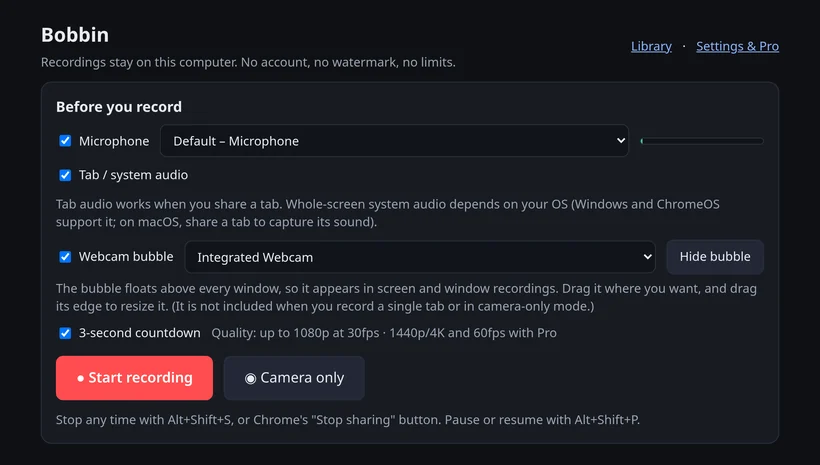
Bobbin is a Chrome extension that records your screen with a webcam bubble and saves an MP4 (where your browser supports it) on your Chromebook. On ChromeOS it can capture whole-screen system audio, so other people's voices are recorded.
- Open the meeting. For Zoom, you can join in a normal Chrome tab at
app.zoom.us/wcor use the installed Zoom app, which opens in its own window. Google Meet runs in a tab. - Click the Bobbin icon and choose Record screen, window or tab. Turn on your microphone (and camera if you want the bubble).
- When Chrome asks what to share:
- If the call is in a Chrome tab, pick that tab and keep Also share tab audio on. Note: a single-tab recording doesn't include the webcam bubble.
- If the call is in its own window (installed Zoom app), pick Entire screen and turn on Also share system audio.
- After the 3-second countdown, you're recording. Pause with Alt+Shift+P; stop with Alt+Shift+S.
- Open Bobbin's Library and download the file. It never leaves your Chromebook unless you share it.
Which option to use
| Bobbin | Zoom cloud recording | ChromeOS Screen capture | |
|---|---|---|---|
| Works for participants | Yes | Host or co-host only | Yes |
| Cost | Free | Paid Zoom licence | Free, built in |
| Other people's audio | Yes (tab audio, or system audio on ChromeOS) | Yes | Yes (Device audio) |
| Notifies participants | No. Tell them yourself. | Yes | No. Tell them yourself. |
| File format | MP4 where supported, WebM otherwise | MP4 in Zoom's cloud | WebM in Downloads |
| Webcam bubble | Yes, in screen and window recordings | Meeting layout | Front camera option |
| Where it's stored | Your Chromebook | Zoom's cloud | Your Chromebook |
Recording etiquette and the law
A screen recorder doesn't trigger Zoom's or Meet's "this meeting is being recorded" notice. Say you're recording at the start and get agreement. Laws on recording conversations differ by country and state, and some require everyone's consent. Your school or employer may also have rules.