 Bobbin
Quick answer
In PowerPoint desktop: select Record near the top right, press the red record button, present, then File → Export to save a video. For slides in a browser or any app: record the screen or window with a webcam bubble (for example with Bobbin), so you get one MP4 of the slides plus your face.
Method 1: PowerPoint's built-in Record
Microsoft's support page (checked 23 October 2026) describes the steps for PowerPoint for Microsoft 365, 2024, 2021, 2019 and 2016:
- Open the slide you want to start from.
- Near the upper right corner of the PowerPoint window, select Record.
- Select the round red record button, wait for the countdown, and start speaking. You can pause, stop and replay, and use the pen, highlighter or eraser while you record.
- Save it as a PowerPoint file, or choose File → Export to create a video.
Two things to know: narration isn't recorded during slide transitions, so pause briefly as you move between slides, and the recording is tied to the deck. To re-record one slide, use Clear → Clear Recording on Current Slide.
Method 2: record any slides with a webcam bubble
This works for PowerPoint for the web, Google Slides, Canva, Pitch, Keynote exports or a PDF: anything you can show on screen. The recording is exactly what viewers would see in a live session, with your camera in a corner.
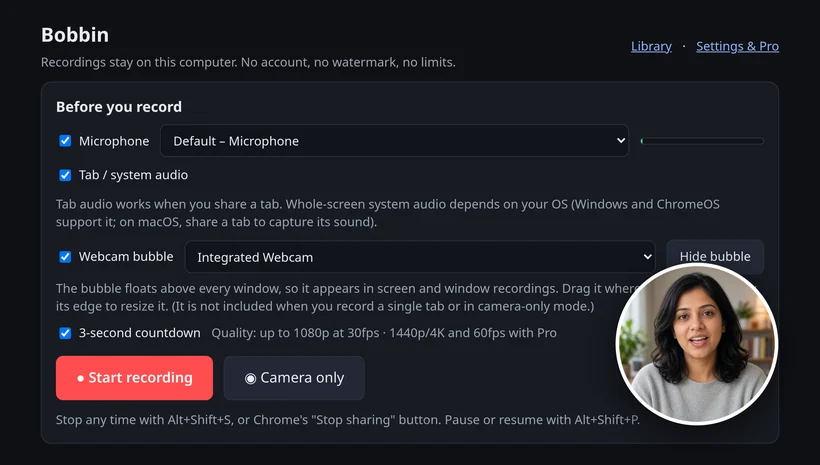
- Click the Bobbin icon in Chrome's toolbar and choose Record screen, window or tab.
- Pick your microphone and turn on the camera if you want the webcam bubble.
- Press Start recording, choose what to share in Chrome's picker, and wait for the 3-second countdown.
- Pause with Alt+Shift+P, stop with Alt+Shift+S, then press Download to save the file.
Tips that make slide recordings look better:
- Record the window or the entire screen, not a single tab, if you want the webcam bubble: it shows in screen and window recordings, not in single-tab ones. Drag the bubble to a corner your slides don't use.
- Use the slideshow in a window rather than full screen if you need your notes next to it, and record only that window.
- Pause between sections instead of stopping, so you end up with one file. Paused time isn't included in the video.
- Free records up to 1080p with no watermark and no time limit, which is plenty for slides. Bobbin saves MP4 where your browser supports it (Chrome 126 or newer), WebM otherwise, and tells you which it used.
Which method should you use?
| Screen recorder with bubble (Bobbin) | PowerPoint Record | |
|---|---|---|
| Works with | Any slides you can show on screen | PowerPoint desktop decks |
| Webcam | Floating bubble in screen/window recordings | Depends on your PowerPoint version |
| Output | One MP4 file (WebM on older Chrome) | Narrated deck, or a video via Export |
| Editing afterwards | None (re-record or use an editor) | Re-record individual slides |
| Pen / highlighter while recording | Not yet (drawing is planned for a later Pro update) | Yes |
| Account | None | Microsoft 365 or Office licence |
If you live in PowerPoint and want per-slide re-recording, its built-in Record is the better tool. If you want one file of whatever is on screen, or your slides aren't in PowerPoint, record the screen.
Checked on 23 October 2026 from their own pages: Microsoft Support: Record a presentation. Features change; check the linked page before you rely on it.
Loom, Vidyard, Tella, Tango, Screencastify, Screenity, Zoom and Slack are trademarks of their respective owners. Bobbin is not affiliated with them. Prices and plan limits from their public pages as of 22 Oct 2026.