 Bobbin
Quick answer
Your microphone works on every OS. Tab audio (sound from one Chrome tab) works on every OS: choose a tab in Chrome's picker and keep "Also share tab audio" on. System audio (everything your computer plays) works only when you share the entire screen on Windows or ChromeOS. On macOS and Linux, Chrome can't capture system audio, so record the tab that plays the sound instead.
The three kinds of audio
| Audio | What it captures | Where it works in Chrome |
|---|---|---|
| Microphone | Your voice | Windows, macOS, Linux, ChromeOS |
| Tab audio | Sound from one Chrome tab (a video, a web app, a call in the browser) | Windows, macOS, Linux, ChromeOS, when you share a tab |
| System audio | Everything the computer plays, including desktop apps | Windows and ChromeOS, when you share the entire screen |
How to record with audio in Bobbin
- Click the Bobbin icon → Record screen, window or tab.
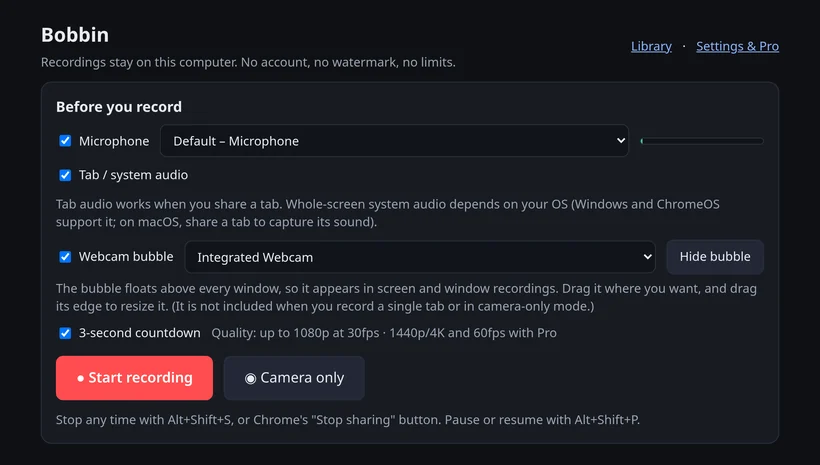
- Tick Microphone for your voice and Tab / system audio for the computer's sound.
- Press Start recording. In Chrome's picker:
- Chrome tab + "Also share tab audio": that tab's sound, on any OS.
- Entire screen + system audio: everything you hear, on Windows and ChromeOS.
- Stop with Alt+Shift+S and press Download.
Your microphone uses Chrome's built-in echo cancellation and noise suppression. If the OS can't capture system audio, Bobbin retries without it and tells you, rather than failing to start.
Common reasons a recording has no sound
- You shared a window, not a tab. Windows don't carry their sound in Chrome. Share the tab, or the entire screen on Windows/ChromeOS.
- "Also share tab audio" was switched off in Chrome's picker.
- You're on a Mac or Linux and expected system audio. Record the tab that plays the sound instead.
- The mic is blocked for the extension in Chrome's site settings, or muted at OS level.
More fixes: screen recording has no audio.
Other free Chrome recorders with audio
Screenity is a free, open-source Chrome extension that also records locally. Loom and Screencastify record audio too, but their free plans have limits: Loom Starter stops recordings at 5 minutes, and Screencastify Free adds a watermark and stops at 30 minutes (their own pages, checked 22 October 2026). Bobbin's free plan has no watermark, no time limit and no account.
Competitor facts checked on 22 October 2026 from their own pages: Loom help: How long can I record? · screencastify.com/pricing · screenity.io/extension. Plans change often; check the linked page before you decide.
Loom, Vidyard, Tella, Tango, Screencastify, Screenity, Zoom and Slack are trademarks of their respective owners. Bobbin is not affiliated with them. Prices and plan limits from their public pages as of 22 Oct 2026.