 Bobbin
The short version
- Bobbin records your screen, slides or a document with your webcam in a corner, with no account, no watermark, no video cap and no time limit.
- It works on Chromebooks and in Chrome, Edge or Brave on Windows and Mac.
- You get an MP4 file: upload it to Google Drive, Google Classroom, your LMS or YouTube.
- It has no LMS integration, editor, captions or student assignments. If you need those, a classroom tool such as Screencastify fits better.
What teachers record (and what each needs)
| Video | Typical length | What to record | Tip |
|---|---|---|---|
| Lesson walkthrough | 10 to 45 minutes | Slides or a doc, with webcam bubble | Pause between sections with Alt+Shift+P instead of stopping |
| Flipped-classroom explainer | 3 to 10 minutes | Slides with webcam bubble | One idea per video; short videos are easier to rewatch |
| Feedback on student work | 2 to 5 minutes | The student's doc in a window | Record a window so other tabs stay private |
| Sub plans / class updates | 1 to 3 minutes | Camera only | Use camera-only mode for a quick face-to-camera message |
| Software or website how-to | 5 to 15 minutes | The tab or screen | Turn on tab audio if the site plays sound |
How to record a lesson with your webcam
- Get set up. Open your slides or document. Close tabs and notifications you don't want on screen. Plug in a headset if you have one.
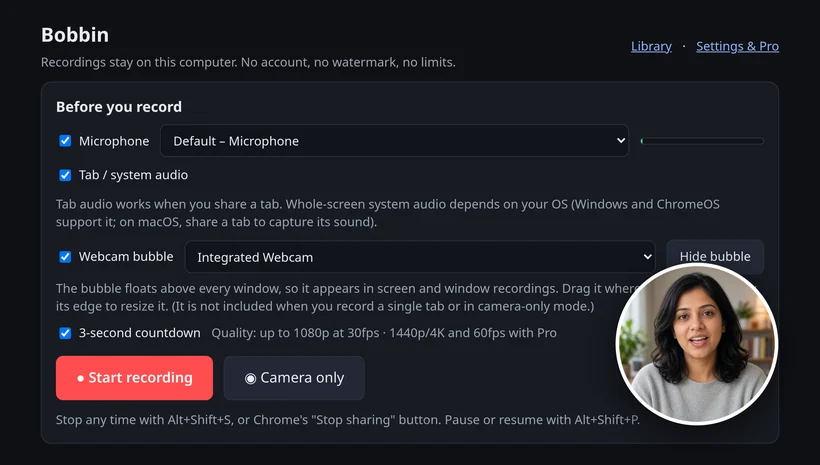
- Start Bobbin. Click the Bobbin icon and choose Record screen, window or tab. Pick your microphone and camera; a round webcam bubble appears and you can drag it to a corner.
- Choose what to share. Pick the window with your slides (or the entire screen). The webcam bubble shows up in screen and window recordings, not in single-tab recordings.
- Teach. A 3-second countdown starts the recording. The toolbar badge shows the timer. Pause with Alt+Shift+P when you need a break.
- Stop and save. Press Alt+Shift+S. If the take went wrong, discard it and start again. Otherwise download the MP4 from the Library.
Recording slides specifically? See Record a Google Slides presentation with your webcam.
Sharing with students
- Google Classroom: upload the MP4 to Google Drive, then add it to an assignment or announcement from Drive. Students open it in Drive's player.
- Canvas, Schoology, Moodle and other LMSs: use the platform's file or media upload. Check its size limit for long lessons.
- YouTube: upload as Unlisted so only people with the link can find it.
File size depends on what's on screen. A mostly static slide recording was about 4 MB per minute in our test; lots of motion makes bigger files. More options in How to share a large screen recording.
Student privacy
Bobbin has no account and no servers for video: recordings stay on your computer until you share them, and the extension has no analytics or trackers. That means there's no student data inside Bobbin to manage. The video itself is still a record of whatever was on screen, so:
- Record a single window rather than your whole screen when grades, email or other students' names are open elsewhere.
- Follow your school's rules before recording students' faces or voices, and before uploading anywhere public.
- On a school-managed Chromebook, your IT admin decides which extensions you can install.
How it compares with classroom recorders
| Bobbin Free | Screencastify Free | Loom Starter | |
|---|---|---|---|
| Account | None | Google sign-in | Required |
| Video limit | None | 10 (up to 20) | 25 |
| Length | No time limit | 30 minutes | 5 minutes |
| Watermark | None | Yes | Loom branding |
| Captions | No | On Pro | Yes |
Competitor facts checked on 22 October 2026 from their own pages: screencastify.com/pricing · loom.com/pricing · Loom help: How long can I record? · Loom help: education discount verification. Plans change often; check the linked page before you decide.
Loom, Vidyard, Tella, Tango, Screencastify, Screenity, Zoom and Slack are trademarks of their respective owners. Bobbin is not affiliated with them. Prices and plan limits from their public pages as of 22 Oct 2026.
Loom's legacy free Education plan is closed to new applicants; verified educators can apply for a discount. Details in our Screencastify alternative page and Loom free plan limits.