 Bobbin
Quick answer
Screen only: press Win+Shift+R (Snipping Tool). Screen + webcam: use Clipchamp's Screen & Camera recorder (free with an account, 30-minute sessions), or a Chrome extension such as Bobbin (no account, no time limit, webcam bubble, MP4 file, system audio when you share the entire screen).
1. Snipping Tool (built in, no webcam)
Microsoft's guide (checked 23 October 2026): open Snipping Tool and switch to Record, or press Win+Shift+R. Select an area and press Start. You can turn on your microphone, and in Settings you can include system audio by default. Recordings are saved in Videos → Screen Recordings. It's free and needs no account. Microsoft's guide doesn't mention a webcam option.
2. Xbox Game Bar (built in, one app at a time)
Press Win+Alt+R to start and stop recording the app you're using; Win+Alt+M toggles the mic. Clips are saved as MP4 in Videos → Captures. Dell's support notes it doesn't work on the desktop or in apps like File Explorer, so it's best for a single app or game. No webcam overlay.
3. Clipchamp Screen & Camera
Clipchamp's Screen & Camera tool records your screen and webcam at the same time and puts both on an editing timeline, so you can place the camera as picture-in-picture. Per Clipchamp's pages, it's free with sign-up, sessions are up to 30 minutes (make several for longer), and computer audio is recorded only when you share a browser tab. It's a good choice if you want to edit afterwards.
4. A Chrome extension with a webcam bubble (Bobbin)
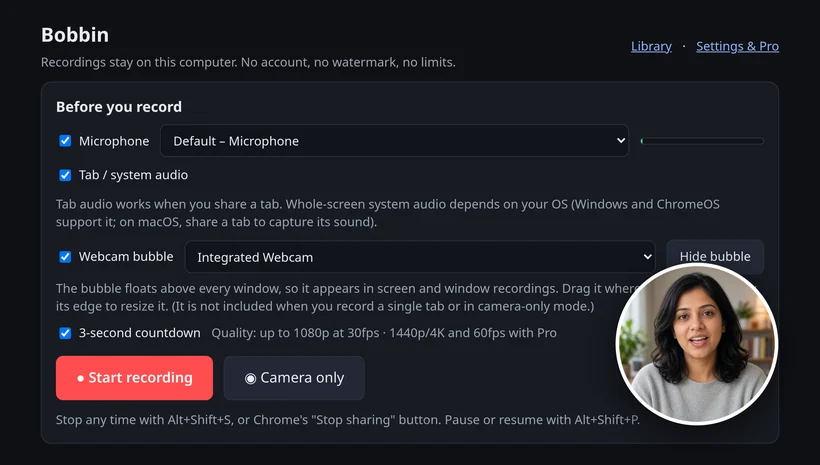
Bobbin floats a round webcam bubble over your screen while it records, so the bubble is part of the video. It works in Chrome and Edge on Windows.
- Click the Bobbin icon in Chrome's toolbar and choose Record screen, window or tab.
- Pick your microphone and turn on the camera if you want the webcam bubble.
- Press Start recording, choose what to share in Chrome's picker, and wait for the 3-second countdown.
- Pause with Alt+Shift+P, stop with Alt+Shift+S, then press Download to save the file.
On Windows you can capture system audio when you share the entire screen (tick Tab / system audio). The free plan records up to 1080p with no watermark, no time limit and no account; nothing is uploaded. It doesn't edit; you get the raw MP4.
Comparison
| Bobbin | Clipchamp | Snipping Tool | Game Bar | |
|---|---|---|---|---|
| Webcam on the recording | Bubble, in screen/window recordings | Yes (screen & camera) | Not in Microsoft's guide | No |
| Whole desktop | Yes | Yes | Yes | No (one app) |
| System audio | Yes, entire screen on Windows | Browser tab only | Yes (setting) | Yes |
| Time limit | None | 30 min per session | Not stated | Not stated |
| Account | None | Required | None | None |
| Editing | No | Yes | No | Basic trim in Xbox app |
Checked on 23 October 2026 from their own pages: Microsoft: How to use Snipping Tool on Windows 11 · Microsoft Q&A: screen record on Windows 11 with audio · Microsoft Support: record with Xbox Game Bar · Dell support: Game Bar limitations · Microsoft Support: Clipchamp screen recording · clipchamp.com/en/screen-recorder. Features change; check the linked page before you rely on it.
Loom, Vidyard, Tella, Tango, Screencastify, Screenity, Zoom and Slack are trademarks of their respective owners. Bobbin is not affiliated with them. Prices and plan limits from their public pages as of 22 Oct 2026.