 Bobbin
Quick answer
Record the lesson as a file (screen + webcam + voice), then attach it: in Google Classroom use Attach → Drive (or Upload); in Canvas use Media → Upload/Record Media in the Rich Content Editor. Classroom's own Record option is capped at 5 minutes and needs Google Workspace for Education Plus or the Teaching and Learning add-on.
Google Classroom: what it can do itself
From Google's Classroom Help (checked 23 October 2026): when you create an assignment, Attach offers Drive, YouTube (if your admin allows it), Create, Upload, Link and Record. Record captures audio, video or a screencast, up to 5 minutes, and is available only with Google Workspace for Education Plus or the Teaching and Learning add-on. Classroom can also attach a video made in Google Vids.
Drive attachments are read-only for students by default.
Canvas: what it can do itself
From Instructure's guide (checked 23 October 2026): in the Rich Content Editor (Announcements, Assignments, Discussions, Pages, Quizzes) choose Media → Upload/Record Media. The Record tab uses your webcam and microphone, not your screen. Instructure recommends shorter recordings and suggests recording with an external tool and uploading if your media is longer than 15 minutes. The Computer tab uploads a video file. If the Media icon is missing, your institution has disabled media uploads.
Record the lesson (screen + webcam, no time limit)
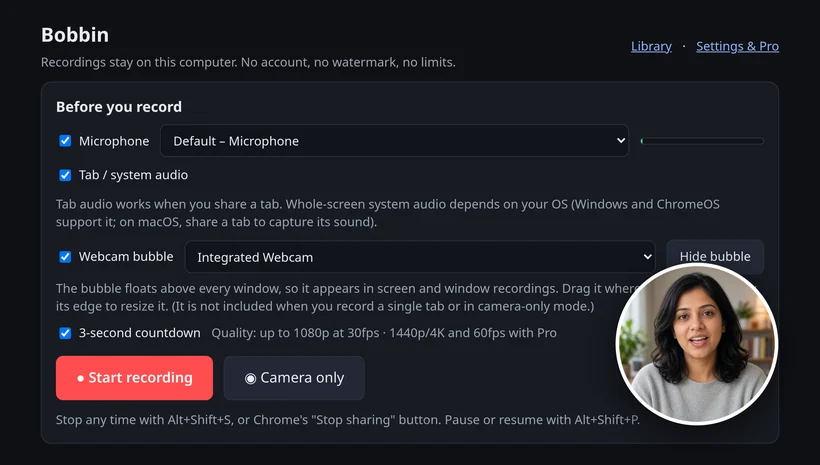
- Click the Bobbin icon in Chrome's toolbar and choose Record screen, window or tab.
- Pick your microphone and turn on the camera if you want the webcam bubble.
- Press Start recording, choose what to share in Chrome's picker, and wait for the 3-second countdown.
- Pause with Alt+Shift+P, stop with Alt+Shift+S, then press Download to save the file.
Bobbin's free plan has no time limit, no watermark and no video limit, and no student or teacher account is needed. Videos stay on your computer until you upload them; Bobbin doesn't upload anything. It works on school Chromebooks as well as Windows and Mac. Bobbin saves MP4 where your browser supports it (Chrome 126 or newer), WebM otherwise, and tells you which it used.
Post it
Google Classroom
- Upload the MP4 to Google Drive (or choose Upload when attaching).
- In Classroom, open Classwork → Create → Assignment or Material.
- Under Attach, choose Drive, select the video and click Add.
- Post. Students can view it in Classroom and Drive.
Canvas
- Open a Page, Assignment or Announcement and the Rich Content Editor.
- Choose Media → Upload/Record Media, stay on the Computer tab, and select the MP4.
- Save. Your institution may limit file size or use Canvas Studio instead; check with your LMS admin.
Tips for better video lessons
- Keep each video to one idea; several 5–10 minute videos are easier to rewatch than one long one.
- Use Pause (Alt+Shift+P) between sections instead of stopping.
- File size: a 1080p screen recording in our test was about 246 MB per hour, so a 10-minute lesson is roughly 40 MB. See how big is a 1-hour screen recording.
Checked on 23 October 2026 from their own pages: Classroom Help: Create an assignment · Docs Editors Help: Access Vids in Google Classroom · Instructure: record media using the Rich Content Editor. Features change; check the linked page before you rely on it.
Loom, Vidyard, Tella, Tango, Screencastify, Screenity, Zoom and Slack are trademarks of their respective owners. Bobbin is not affiliated with them. Prices and plan limits from their public pages as of 22 Oct 2026.