 Bobbin
Quick answer
- Want a share link fast: Canva's Present and record, on a computer. One recording per design, long recordings can't be downloaded, and it is temporarily unavailable in India.
- Want an MP4 file (for an LMS, YouTube or a client), or you're in India: record the full-screen presentation with a screen recorder that adds a webcam bubble, such as Bobbin.

Option 1: Canva's Present and record
Canva's help page describes the steps:
- Open your presentation in the Canva editor on a computer and select Present (or Share first), then Present and record, then Next.
- Click Go to recording studio and allow Canva to use your microphone and camera.
- Click Start recording, present your slides, then click End recording.
- Choose Copy link to share it, Download, Discard, or Save and exit.
Limits from Canva's help (checked 26 October 2026):
- Only on Canva on a computer.
- One recording per design.
- A Public view link is created automatically, even if you don't save the recording; delete it if you don't want the deck public.
- Long recordings can't be exported; Canva suggests sharing the link instead.
- Talking Presentations (Record yourself and Present and record) is temporarily unavailable in India, and Canva's terms don't allow using a VPN to get around it.
Canva also has Record yourself in the editor's Uploads, with Camera, Camera & Screen and Screen modes, in Chrome and Safari only.
Option 2: a screen recorder with a webcam bubble (Bobbin)
Use it if you want an MP4 file, your talk is long, you need more than one take of the same design, or Canva's recorder isn't available where you are.
- Open the presentation in Canva in Chrome.
- Click the Bobbin icon → Record screen, window or tab. Tick Microphone and Webcam bubble.
- Drag the bubble to a corner and resize it so it doesn't cover your content. Leave that corner empty when you design the slides.
- Press Start recording and choose Entire screen in Chrome's picker. That's what captures the bubble on top of your slides (the bubble doesn't show in single-tab recordings).
- During the 3-second countdown, click back to Canva, press Present and go full screen. Move through slides with the arrow keys.
- Pause between sections with Alt+Shift+P if you need a breath. Stop with Alt+Shift+S and press Download.
Free: no account, no watermark, no time limit, up to 1080p at 30 fps, and the file stays on your computer. Every second is saved as you record, so a crash doesn't lose the take. Optional Pro is $4.99/month or $24 once (founding price) for 1440p/4K and 60 fps where your screen and computer support it, bubble styling, an auto-stop timer and custom file names, with a 7-day refund. Founding price for the first 100 buyers. Then $39 lifetime / $5.99 per month.
Bobbin doesn't host videos or make share links, and it has no editing, transcripts, comments, viewer analytics, team workspace or mobile app.
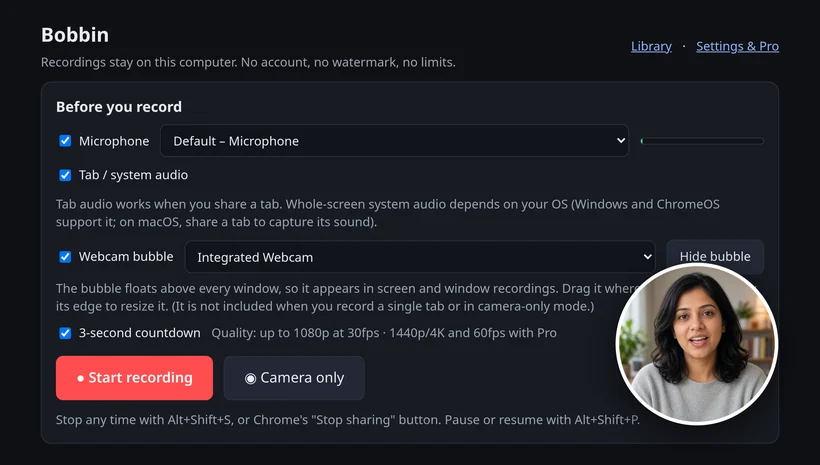
Playing a video inside a slide? To capture its sound, tick Tab / system audio. Whole-screen system audio works on Windows and ChromeOS; on a Mac or Linux, Chrome only captures sound from a single tab, and a single-tab recording doesn't include the webcam bubble.
Which to choose
| Canva Present and record | Bobbin | |
|---|---|---|
| Output | Canva link; download for shorter recordings | MP4 file on your computer (WebM on older browsers) |
| Recordings | One per design | As many takes as you want |
| Works with | Canva presentations | Anything on your screen: Canva, Google Slides, PowerPoint, PDFs |
| Webcam | Camera in the recording studio | Floating bubble you drag and resize |
| Availability | Computer only; temporarily not in India | Chrome, Edge or Brave on Windows, macOS, Linux and ChromeOS |
| Account | Canva account | None |
Presenting tips
- Look at the camera, not the slide, for your key points.
- Camera at eye level; light from the front, not a window behind you.
- Do a 10-second test and play it back to check your mic level.
- For a long talk, record one section per take and join the files in any editor.
Presenting from another app? See Google Slides and PowerPoint.
Checked on 26 October 2026 from their own pages: Canva Help: Talking presentations · Canva Help: Record yourself. Plans and settings change; check the linked page before you decide.
Loom, Vidyard, Tella, Tango, Screencastify, Screenity, Zoom and Slack are trademarks of their respective owners. Bobbin is not affiliated with them. Prices and plan limits from their public pages as of 22 Oct 2026.