 Bobbin
Quick answer
- Free, no account, keeps the file: Bobbin or Screenity (Chrome extensions), or the recorder built into your computer.
- Free with share links: Loom Starter (5-minute recordings, 25 videos) or Vidyard Free (5 recorded videos a month).
- Need Screencastify-style classroom features (assignments, LMS grade sync)? Screencastify's paid plans are still the closest fit.

First: what Screencastify Free includes
Screencastify's pricing page (checked 26 October 2026) lists Free at $0 with up to 10 videos (plus 5 bonus videos per friend you invite, up to 20), recordings up to 30 minutes, and a Castify watermark, plus share links and editing tools. Starter is $7 per user a month billed annually ($19 billed monthly) and gives unlimited videos up to 60 minutes with no watermark on new videos. Pro is $10 per user a month billed annually ($25 monthly), with recordings up to 180 minutes, AI features and unlimited exports. On Free and Starter, the comparison table limits MP4, MP3 and GIF exports to 5 videos. Full breakdown: is Screencastify free?
At a glance
| Tool | Free plan | Paid from | Where videos live | Account |
|---|---|---|---|---|
| Bobbin (Chrome) | No time limit, no video limit, no watermark | $4.99/month or $24 once (optional) | Your computer (MP4 where supported) | No |
| Screenity (Chrome) | Free, open-source recorder, no time limit or watermark | Cloud editor $10/month billed yearly | Your computer or Google Drive | No (only for its editor) |
| Loom | Starter: 25 videos, 5-minute recordings, up to 720p | Business $18 per user/month | Loom's cloud (downloads are a Business feature) | Yes |
| Vidyard | Free: 5 recorded videos a month, no downloads | See vidyard.com/pricing | Vidyard's cloud | Yes |
| ChromeOS Screen capture | Built in, Front Camera option | n/a | Downloads (.webm) | No |
| Windows Snipping Tool / Clipchamp | Built in on Windows 11 | n/a | Your computer | No (Snipping Tool) |
| macOS Screenshot toolbar | Built in (Shift-Command-5) | n/a | Your Mac | No |
1. Bobbin: free, no account, keeps the file
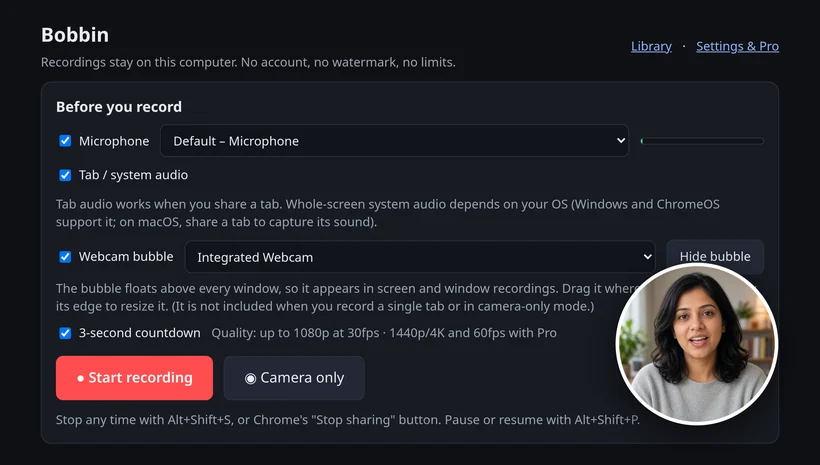
A Chrome extension that records your screen, a window or a tab with a floating webcam bubble (or just your camera), your mic and tab audio, and saves an MP4 where Chrome supports it (WebM otherwise). Free has no time limit, no video limit, no watermark and no account, and nothing is uploaded. Every second is saved to disk as you record, so a crash doesn't lose the take. The bubble shows in entire-screen and window recordings, not single-tab ones. Optional Pro is $4.99/month or $24 once (founding price) for 1440p/4K and 60 fps where your screen and computer support it, bubble styling, an auto-stop timer and custom file names, with a 7-day refund. Founding price for the first 100 buyers. Then $39 lifetime / $5.99 per month.
Trade-off: Bobbin doesn't host videos or make share links, and it has no editing, transcripts, comments, viewer analytics, team workspace or mobile app. Best when you need the raw recording as a file to upload to Google Classroom, Canvas, Drive or YouTube. Head to head: Bobbin vs Screencastify.
2. Screenity: free and open source, with drawing
Screenity's Chrome recorder is free and open source with no sign-in. It has a camera bubble (with backdrop or blur), mic and tab audio, drawing, live blur and a cursor spotlight, and saves to your device or Google Drive. Its cloud editor and share links are the paid part ($10 a month billed yearly). Best when you want to annotate while you record, for free.
3. Loom: free share links, short videos
Loom Starter is free with 25 videos per person, 5-minute screen recordings and up to 720p; downloading is a Business feature. Best when you send quick video messages as links and want comments and view counts. See Loom's free plan limits and Screencastify vs Loom.
4. Vidyard: free plan for sales videos
Vidyard Free records screen and camera into Vidyard's cloud with 5 recorded videos a month, a 30-minute limit and no downloads on Free. Best when you send sales videos and want viewer tracking. See our Vidyard alternative page.
5. ChromeOS Screen capture (built in)
On a Chromebook, press Shift+Ctrl+Show windows, choose Screen record, and turn on Front Camera and the mic in Settings. Free and nothing to install; it saves .webm files. Best when a school Chromebook blocks extensions. Steps: screen record on a Chromebook with audio.
6. Windows: Snipping Tool or Clipchamp
Windows 11's Snipping Tool records the screen, and Microsoft's Clipchamp editor has a screen and camera recorder. Best when you're on Windows and want something already installed. Compared: Windows 11 screen recorders with a webcam.
7. macOS Screenshot toolbar
Press Shift+Command+5 to record the whole screen or part of it, with a microphone from Options. It doesn't add a webcam bubble. Best when you need a quick clip on a Mac without installing anything.
How to choose
- Hit the 10-video or 30-minute cap and just need files: Bobbin, Screenity or a built-in recorder.
- Want to draw or blur while recording: Screenity.
- Students must hand in a link, not a file: Loom, or keep Screencastify if your school pays for it.
- Need assignments, rubrics and LMS grade sync: Screencastify's paid plans; none of the free tools above do that.
Checked on 26 October 2026 from their own pages: screencastify.com/pricing · Screencastify help: Record your screen and webcam · screenity.io/extension · screenity.io/pricing · loom.com/pricing · Loom help: Starter plan FAQ · Vidyard help: Video usage and length limits in Vidyard Free · Chromebook Help: Take a screenshot or record your screen · Microsoft: How to use Snipping Tool on Windows 11 · Microsoft Support: Clipchamp screen recording · Apple Support: Take screenshots or screen recordings on Mac. Plans and settings change; check the linked page before you decide.
Loom, Vidyard, Tella, Tango, Screencastify, Screenity, Zoom and Slack are trademarks of their respective owners. Bobbin is not affiliated with them. Prices and plan limits from their public pages as of 22 Oct 2026.