 Bobbin
Quick answer
- Nothing to install: ChromeOS Screen capture with Front Camera on. Saves a .webm file in Downloads.
- Only your face, no screen: the ChromeOS Camera app in Video mode.
- Movable webcam bubble, MP4, no limits, no account: Bobbin (free extension).
- Drawing and blur while you record: Screenity (free, open source).
- School already uses it: Screencastify (free: 10 videos, 30 minutes each, watermark) or Loom (free: 5-minute recordings, 25 videos).
At a glance
| Webcam | Audio | Free limits | File | Account | |
|---|---|---|---|---|---|
| ChromeOS Screen capture | Front Camera switch | Device audio, mic or both | None stated by Google | .webm (GIF for partial screen, no sound) | No |
| ChromeOS Camera app | Webcam only (no screen) | Mic | None stated by Google | Video in My files › Camera | No |
| Bobbin | Floating bubble you drag and resize; or camera only | Mic + tab audio; whole-screen system audio on ChromeOS | No time limit, no video limit, no watermark | MP4 where supported, WebM otherwise | No |
| Screenity | Camera bubble, with backdrop or blur | Mic + tab audio, push-to-talk | Recorder free, no time limit, no watermark | Saved on your device or to Google Drive | No (only for its paid editor) |
| Screencastify Free | Embed Webcam toggle (pop-out webcam for full screen) | Mic | 10 videos, 30 minutes each, Castify watermark | Hosted; export options | Yes |
| Loom Starter | Camera bubble | Mic, system audio | 25 videos, 5-minute screen recordings, up to 720p | Hosted link (downloads are a Business feature) | Yes |
1. ChromeOS Screen capture (built in)
Press Shift+Ctrl+Show windows, choose Screen record, open Settings and turn on Front Camera; pick Device audio, Microphone or both. Stop with Search+Shift+X. It is free, needs no install and works on most school Chromebooks, but it saves .webm files, which some editors and phones handle poorly. Full steps and no-sound fixes: screen record on a Chromebook with audio and facecam.
2. The Camera app (just your face)
If you only need yourself talking, not your screen, open the Launcher, then Camera, select Video and start recording. Google's help page says you can pause and continue the same video, and recordings appear in Files › My files › Camera. Good for a quick introduction or a spoken answer to an assignment.
3. Bobbin (free extension, webcam bubble)
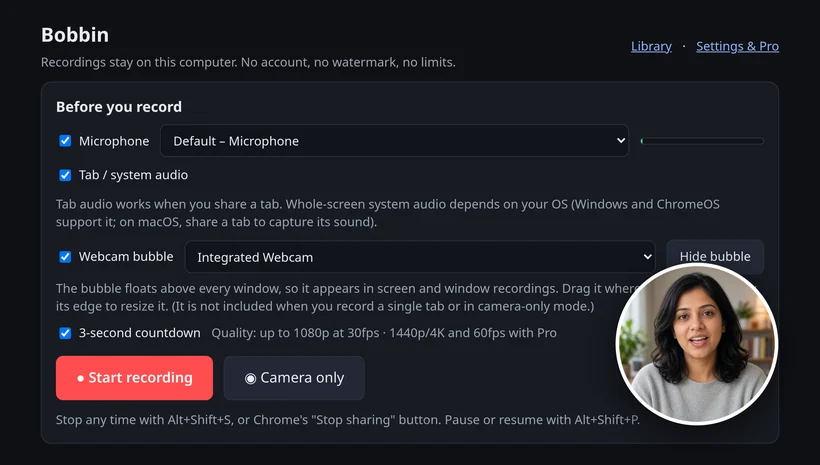
Bobbin adds a round webcam bubble that floats over everything. You drag it anywhere and resize it, and it shows up in entire screen and window recordings (not in single-tab recordings, because the bubble is its own window). There is also a camera-only mode.
- Install Bobbin from the Chrome Web Store, then click its icon → Record screen, window or tab.
- Tick Webcam bubble, Microphone and, for sound from the Chromebook, Tab / system audio.
- Press Start recording and choose Entire screen (turn on system audio; ChromeOS supports it).
- Drag the bubble to a corner that doesn't cover your work. Pause with Alt+Shift+P, stop with Alt+Shift+S, then Download.
Free: no account, no watermark, no time limit, no video limit, up to 1080p at 30 fps, MP4 where Chrome supports it. Every second is saved as you record, so a crash doesn't lose the take. Optional Pro is $4.99/month or $24 once (founding price) for 1440p/4K and 60 fps where your screen and computer support it, bubble styling, an auto-stop timer and custom file names, with a 7-day refund. Founding price for the first 100 buyers. Then $39 lifetime / $5.99 per month.
Bobbin doesn't host videos or make share links, and it has no editing, transcripts, comments, viewer analytics, team workspace or mobile app.
4. Screenity (free, open source)
Screenity's recorder is free and open source (GPLv3) with no sign-in. Its page lists a camera bubble (on a backdrop or blurred), mic and tab audio with push-to-talk, drawing, live blur and a cursor spotlight, and trimming and cropping; recordings save on your device or to Google Drive. Screenity says it runs on Chromebooks. Its cloud editor and share links are the paid part ($10 a month billed yearly, $120 a year, after a 7-day trial).
5. Screencastify Free
Many schools already use Screencastify. Turn on Embed Webcam (and the pop-out webcam for full-screen recordings) before you press Record. The free plan allows up to 10 videos of up to 30 minutes each and adds a Castify watermark; Starter removes these from $7 per user a month billed annually ($19 billed monthly).
6. Loom Starter
Loom's Chrome extension records your screen with a camera bubble and gives you a share link. Starter is free with 25 videos per person, 5-minute screen recordings and up to 720p; downloading videos is a Business feature. See Loom's free plan limits.
Which one should you use?
- A class assignment due today: the built-in tool with Front Camera, unless your teacher wants MP4 (then Bobbin).
- A lesson longer than 30 minutes: the built-in tool, Bobbin or Screenity: none of them has a time limit on the free recorder.
- You need to draw or blur while recording: Screenity.
- Your school hands out Screencastify or Loom accounts: use them if their limits fit; the share link and the teacher's view are the point.
- You want the file on your Chromebook, with no account and nothing uploaded: the built-in tool or Bobbin.
Look and sound better on camera
- Light from the front. Sit facing a window or lamp; a window behind you turns you into a silhouette.
- Camera at eye level. Put the Chromebook on a few books so the camera isn't looking up at you.
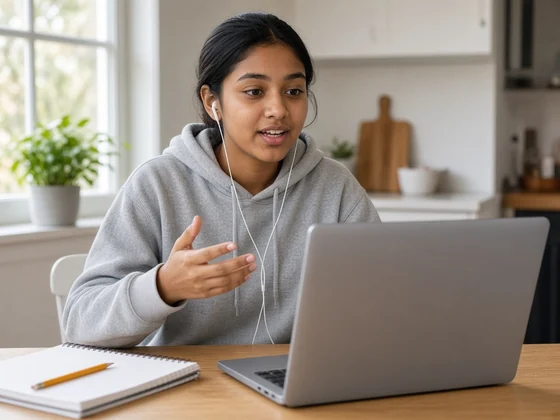
- Earbuds with a mic sound clearer than the built-in mic and stop speaker echo.
- Do a 10-second test and play it back before a long recording.
School-managed Chromebooks
Admins can block extensions from the Chrome Web Store and restrict screen capture. If "Add to Chrome" is greyed out, ask your teacher or IT admin, or use the built-in tool if it's allowed. Follow your school's rules about recording other people.
Checked on 26 October 2026 from their own pages: Chromebook Help: Take a screenshot or record your screen · Chromebook Help: Use camera features · screenity.io/extension · screenity.io/pricing · screencastify.com/pricing · Screencastify help: Record your screen and webcam · loom.com/pricing · Loom help: Starter plan FAQ. Plans and settings change; check the linked page before you decide.
Loom, Vidyard, Tella, Tango, Screencastify, Screenity, Zoom and Slack are trademarks of their respective owners. Bobbin is not affiliated with them. Prices and plan limits from their public pages as of 22 Oct 2026.